
Enabling/Disabling ModSecurity in DirectAdmin
Here’s a step-by-step guide on how to enable or disable ModSecurity in DirectAdmin:
Table of Contents
Enabling ModSecurity in DirectAdmin
- Login to DirectAdmin:
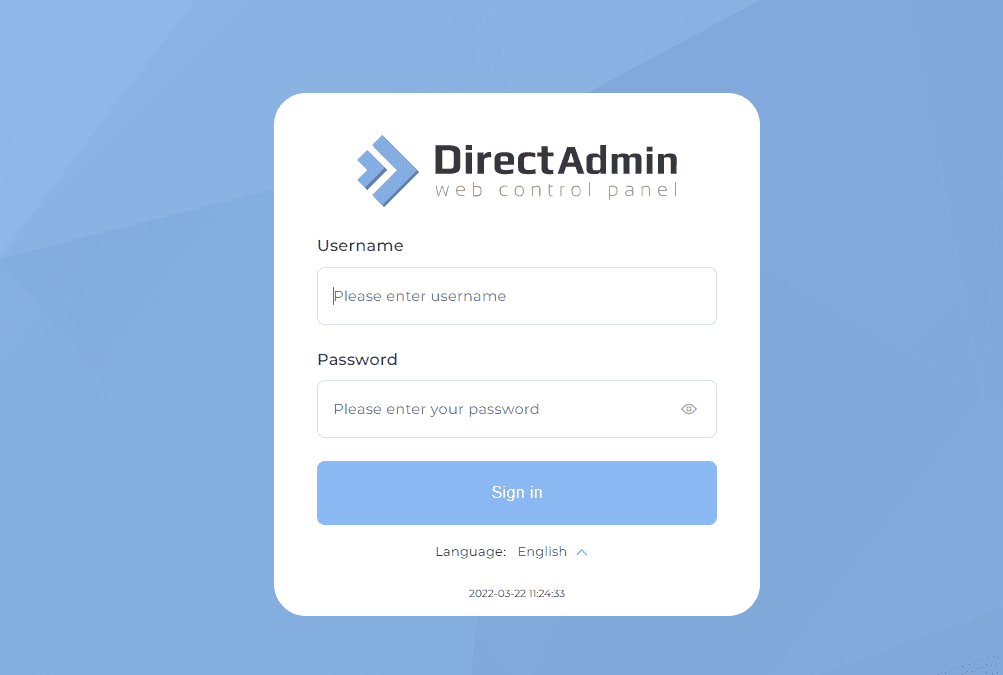
- Log in to the hosting DirectAdmin control panel with admin/root privileges.
- Access ModSecurity Settings:
- Go to Admin Level → ModSecurity.
- Install/Enable ModSecurity:
- If ModSecurity is not yet installed, you may need to install it. You can do this via the CustomBuild plugin:
- Navigate to Admin Level → CustomBuild.
- Click on the Build Software tab and search for “modsecurity”.
- Check the box next to ModSecurity and click on Build to install it.
- After installation, ModSecurity should be enabled by default.
- If ModSecurity is not yet installed, you may need to install it. You can do this via the CustomBuild plugin:
- ModSecurity Rules:
- After enabling ModSecurity, you should configure the rules. DirectAdmin allows you to install predefined rule sets like the OWASP ModSecurity Core Rule Set (CRS), which helps protect against common web application attacks.
- To set up rules, go to the ModSecurity section under Admin Level and select Rules. You can select pre-built rules from there.
- Confirm ModSecurity is Active:
- Once installed and enabled, you should confirm that ModSecurity is running. This can be done by checking the web server logs (e.g., Apache logs) for ModSecurity messages.
Disabling ModSecurity in DirectAdmin
- Login to DirectAdmin:

- Log in to the DirectAdmin control panel with admin/root privileges.
- Access ModSecurity Settings:
- Navigate to Admin Level → ModSecurity.
- Disable ModSecurity:
- In the ModSecurity section, you will find an option to disable ModSecurity globally or for specific domains.
- You can disable ModSecurity by unchecking the Enabled box or selecting the Disable option for specific domains.
- Remove ModSecurity (Optional):
- If you want to remove ModSecurity entirely, you can do so via CustomBuild:
- Navigate to Admin Level → CustomBuild.
- Go to the Build Software tab and uncheck the ModSecurity option.
- Click Build to uninstall ModSecurity.
- If you want to remove ModSecurity entirely, you can do so via CustomBuild:
Pros and Cons of Using ModSecurity

Pros
- Enhanced Security:
- ModSecurity acts as an additional layer of security, helping to protect against common web application vulnerabilities, such as SQL injection, XSS, and other malicious requests.
- Configurable Rules:
- You can configure ModSecurity rules to tailor the protection to specific requirements of your web applications. There are predefined rule sets like OWASP CRS, which provide excellent baseline security.
- Real-time Monitoring:
- ModSecurity can provide real-time monitoring of HTTP requests, allowing you to detect and respond to malicious traffic quickly.
- Flexible Deployment:
- You can deploy ModSecurity globally (for all domains) or customize its application on a per-domain basis.
Cons
- False Positives:
- One of the common issues with ModSecurity is false positives, where legitimate requests may be blocked because they match one of the security rules. This can cause some legitimate functionalities to break.
- Performance Overhead:
- Since ModSecurity inspects each incoming and outgoing request, it can add some performance overhead, especially on high-traffic websites or if complex rules are used.
- Complex Configuration:
- Managing and customizing ModSecurity rules can be complex, particularly for those unfamiliar with security rules. Inappropriate configuration can either weaken security or cause excessive blocking.
- Additional Resource Usage:
- Running ModSecurity increases the server’s resource consumption (CPU, memory), especially if you have complex rule sets or high traffic volume.
Summary
ModSecurity is a powerful security tool for web applications hosted in DirectAdmin, providing robust protection against a range of attacks. However, it requires careful configuration to minimize false positives and performance overhead. When managed correctly, it significantly enhances the security posture of your web hosting environment.