

cPanel features – Managing your website effectively requires a reliable and user-friendly interface, and cPanel is one of the most popular control panels used by web hosts to give you control over your hosting environment. Whether you’re a beginner or an experienced webmaster, cPanel offers a wide array of tools to help you manage your files, databases, email accounts, security, and more. In this guide, we’ll explore the ins and outs of cPanel, helping you understand its key features and how to use them to optimize your website’s performance.
Table of Contents
What is cPanel?

cPanel is a web-based control panel that provides a graphical interface and automation tools designed to simplify the process of hosting a website. It’s widely used by many hosting providers due to its ease of use, robust features, and flexibility. With cPanel, you don’t need to be a server expert to handle essential tasks like website backups, email management, and file transfers.
Key cPanel features

- File Managemen
Easily manage your website files with the cPanel File Manager. It allows you to upload, download, edit, and delete files directly from the interface, bypassing the need for FTP clients. You can also manage permissions, compress files, and create backups with just a few clicks. - Domain Management
cPanel allows you to add multiple domains and manage them from a single account. Features like Addon Domains, Subdomains, and Parked Domains give you control over domain configurations. You can also manage DNS settings, set up redirects, and handle domain aliases. - Email Management
Create and manage professional email addresses associated with your domain. With cPanel, you can set up new accounts, configure forwarding, enable autoresponders, and set up spam filters. It also provides access to webmail interfaces, allowing you to check your emails directly from the browser. - Database Management
If your website uses databases, cPanel makes it easy to create, manage, and back up MySQL databases using phpMyAdmin. It’s perfect for users running dynamic sites like WordPress, Joomla, or custom web applications. - Security Settings
cPanel comes equipped with a variety of security tools to help you protect your site from threats. You can manage SSL certificates, enable hotlink protection, use IP blockers, and set up password-protected directories. Tools like Leech Protection and ModSecurity help ensure your website remains secure. - Backup and Restore
cPanel allows you to easily back up your entire website, including files, databases, and email accounts. Regular backups are critical in case of data loss or hacking attempts, and cPanel’s Backup Wizard simplifies the process of creating and restoring backups. - Software and Applications
One of cPanel’s most popular features is Softaculous, a one-click installer for hundreds of web applications like WordPress, Joomla, Drupal, and Magento. You can quickly set up content management systems, e-commerce platforms, and more with minimal effort. - Metrics and Analytics
Monitoring your website’s performance is key to optimizing its success. cPanel provides tools like Awstats, Webalizer, and Raw Access Logs to track visitor activity, bandwidth usage, and error logs. - Advanced Features
For more advanced users, cPanel includes features like SSH Access, Cron Jobs, and Git Version Control. These tools provide deeper control over server settings and allow for more complex management tasks.
Step-by-Step Guide to Managing Web Hosting with cPanel
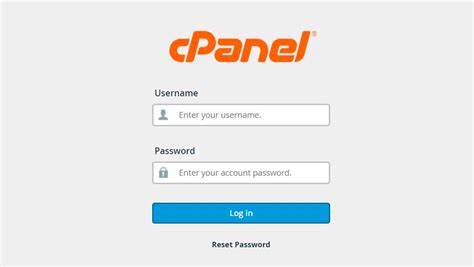
- Logging into cPanel
Access your cPanel by visitingyourdomain.com/cpanelor through your hosting provider’s dashboard. Log in with the username and password provided by your host.
- Navigating the Dashboard
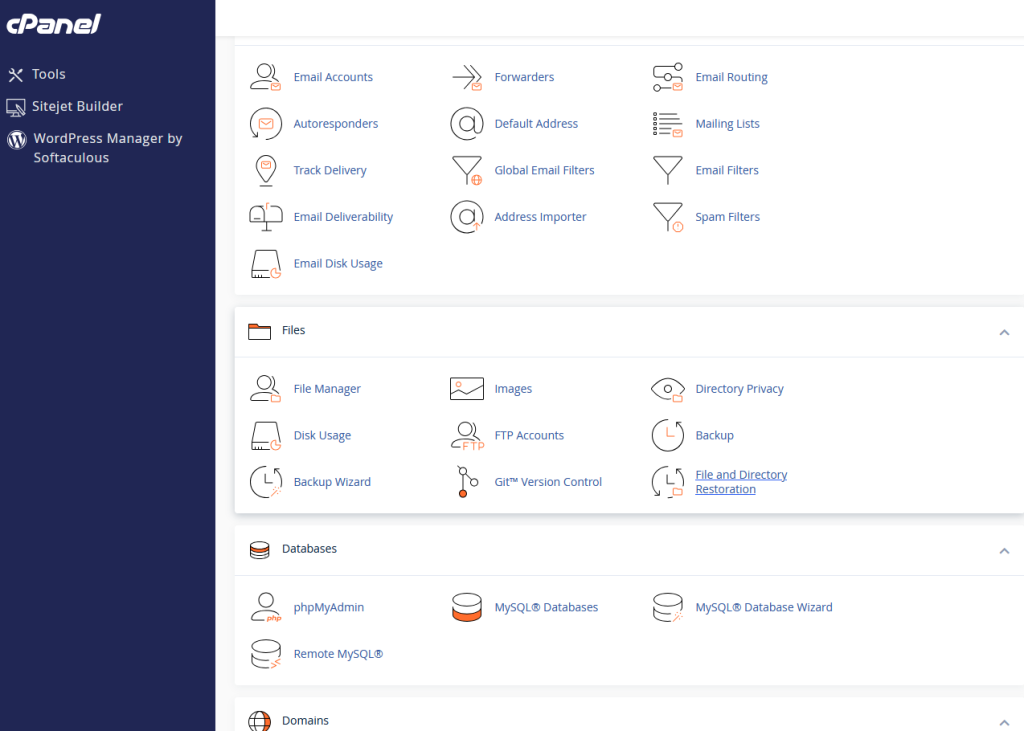
Upon logging in, you’ll be greeted by cPanel’s dashboard, organized into various sections such as Files, Databases, Domains, Email, and Security. You can search for tools using the search bar at the top or click through icons to access specific features.
- Managing Files
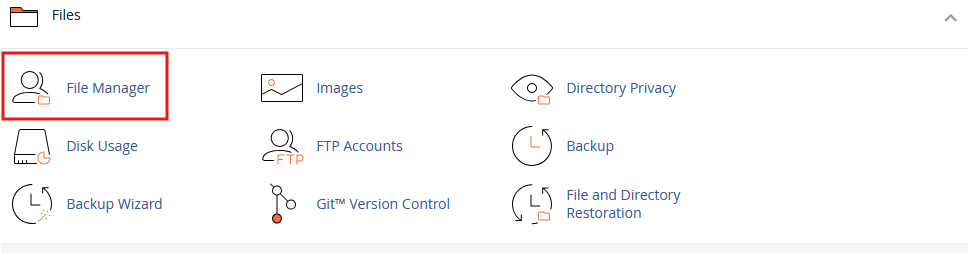
- Go to File Manager to access and manage website files.
- Upload new files by clicking Upload and selecting files from your computer.
- Edit website files, such as HTML or CSS, directly in the File Manager.
- Setting Up Email Accounts
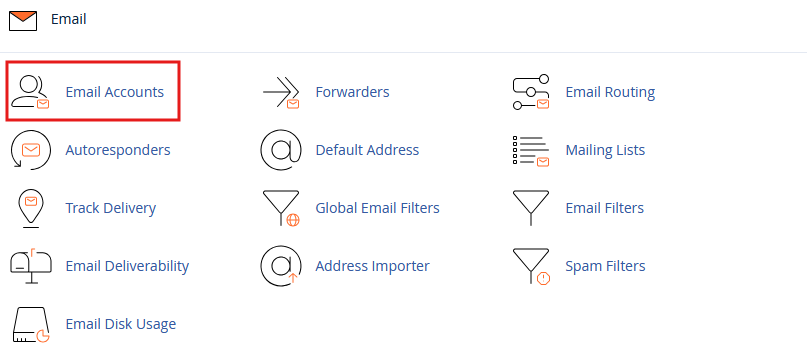
- Click on Email Accounts under the Email section.
- Create a new email by entering your desired address and password.
- Access your email via Webmail or configure it with email clients like Outlook or Thunderbird.
- Managing Databases
- Navigate to MySQL Databases to create a new database for your website.
- Use phpMyAdmin to manage tables, run queries, and back up database information.

- Installing a CMS or Application
- Use Softaculous to install popular applications like WordPress. Simply select the application, fill out the necessary details, and click Install.

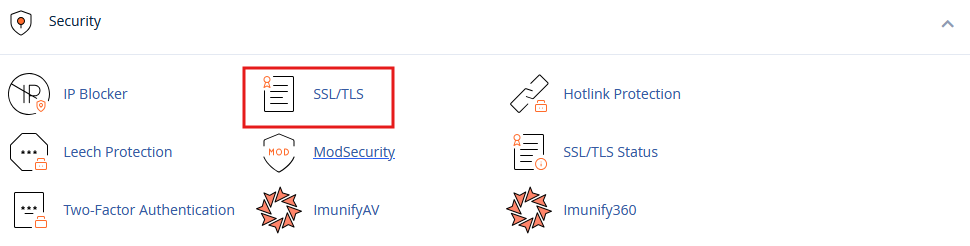
- Securing Your Site with SSL
- Go to SSL/TLS to manage SSL certificates for your domain.
- Generate a free SSL certificate or install one purchased from a third-party provider.
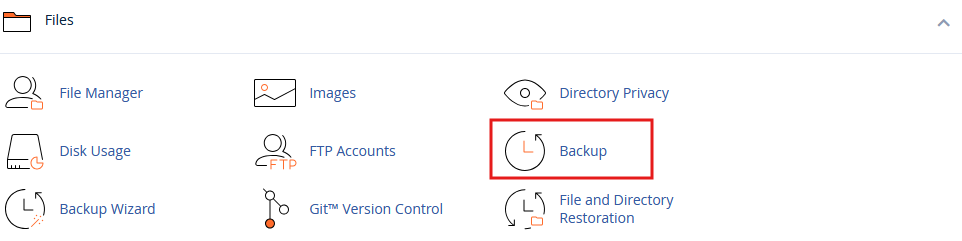
- Setting Up Backups
- Click on Backup Wizard under Files to create backups of your entire account or specific elements like databases.
- Download backups to your computer or restore from a previous backup if needed.
Conclusion
cPanel is a powerful and intuitive tool that simplifies web hosting management, making it accessible even to those without extensive technical knowledge. By leveraging its extensive range of features, you can manage your website files, databases, security settings, and more with ease. Whether you’re running a personal blog, an e-commerce site, or a business platform, cPanel provides the tools you need to keep your website running smoothly and efficiently.